
The pictures come from a test with sample data, in Italian; the pages and the app switch language with their button.
How it works
Each cylinder has its own record: gas, where it is, whether it is full, empty or defective, and all its movements. The records update themselves with each of the driver's documents.
- The owner uses the page gastrace.chainintegrate.it on a computer: sees cylinders and documents, manages customers, phones and settings.
- The driver uses the GasTrace app on an Android phone: scans the cylinders' barcodes at delivery and collection.
- After each document an e-mail goes to the customer and to the company.
- The data is encrypted: only the owner's data password opens it. The company pays nothing per operation: ChainIntegrate takes care of it.
For the owner
First sign-in
Use the computer where the ChainIntegrate Account extension is installed in the browser, with the company's account.
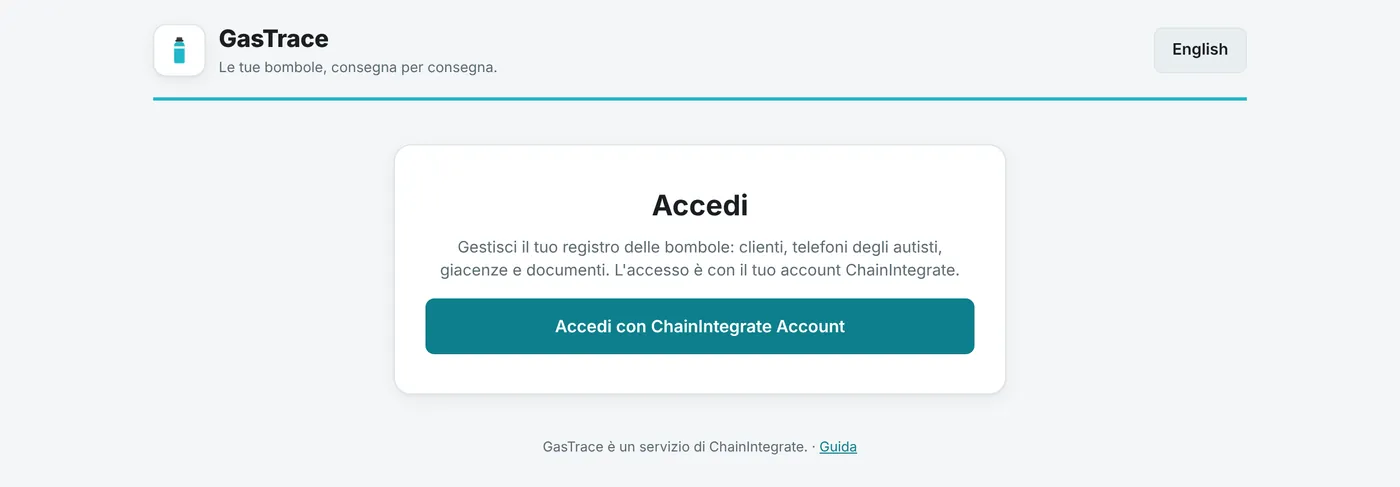
- Open gastrace.chainintegrate.it and press Sign in with ChainIntegrate Account.
- The extension's window opens: check that the site is
gastrace.chainintegrate.itand confirm. - The page finds the company's cylinder register by itself. If there is more than one, choose the right one.
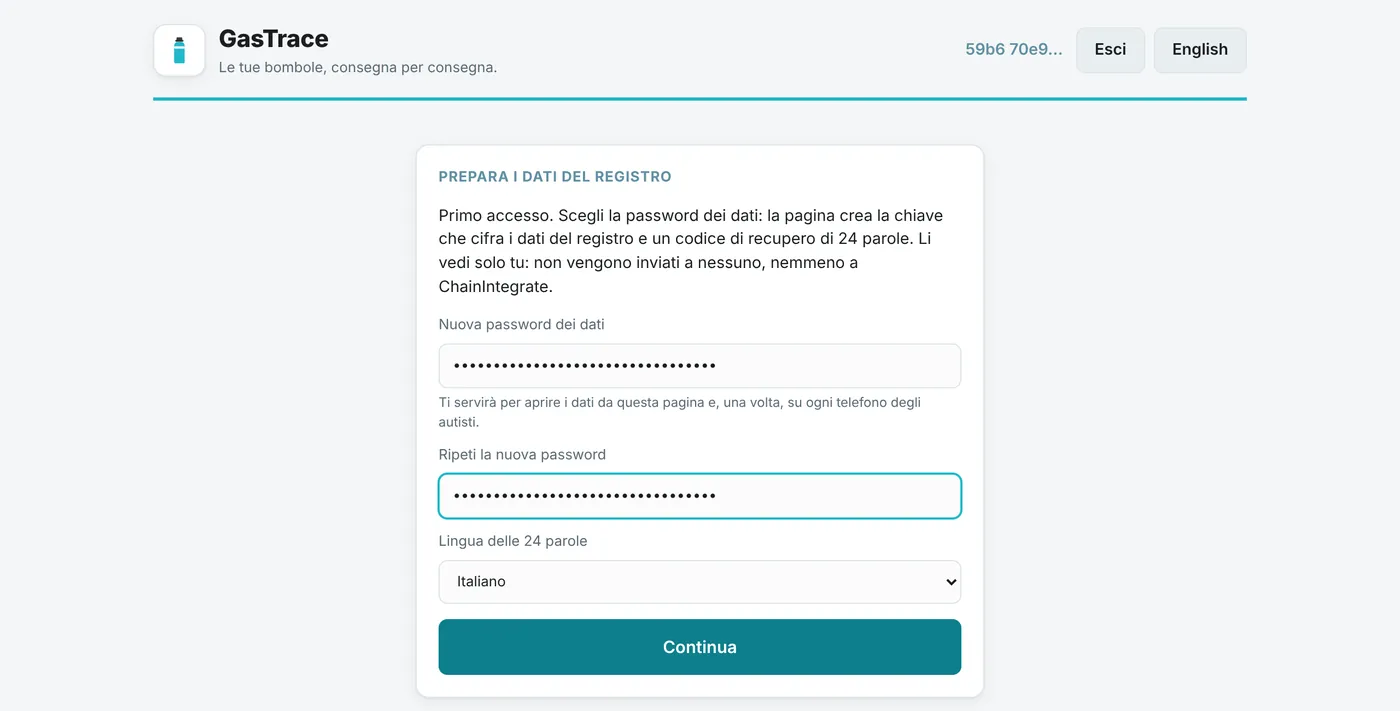
- The first time the page shows Prepare the register's data:
- choose the data password (twice) and the language of the recovery code, then Continue;
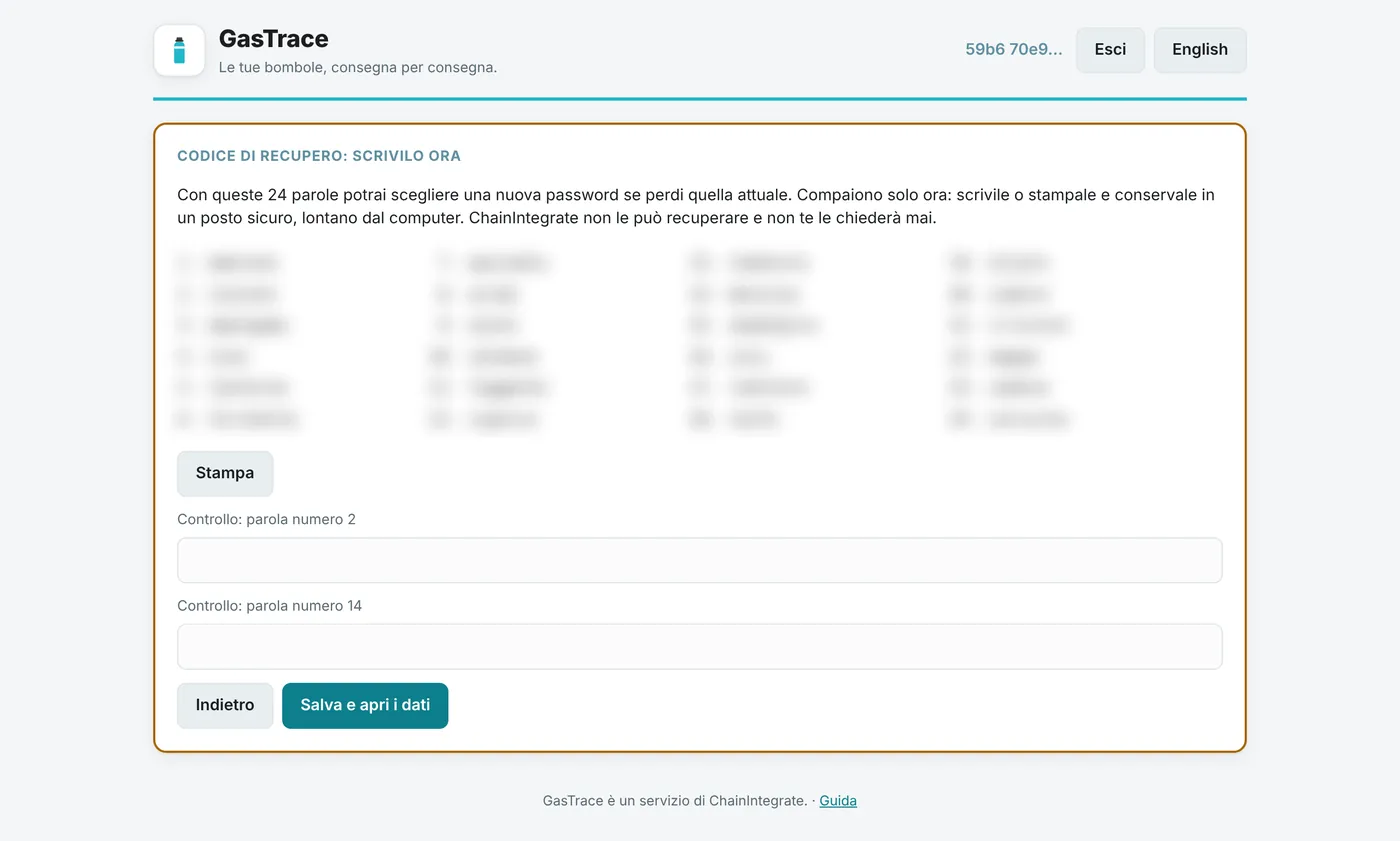
- the page makes the key that encrypts the data and shows the 24-word recovery code: write it down or print it at once;
- type the two words it asks for and press Save and open the data, then confirm in the extension's window.
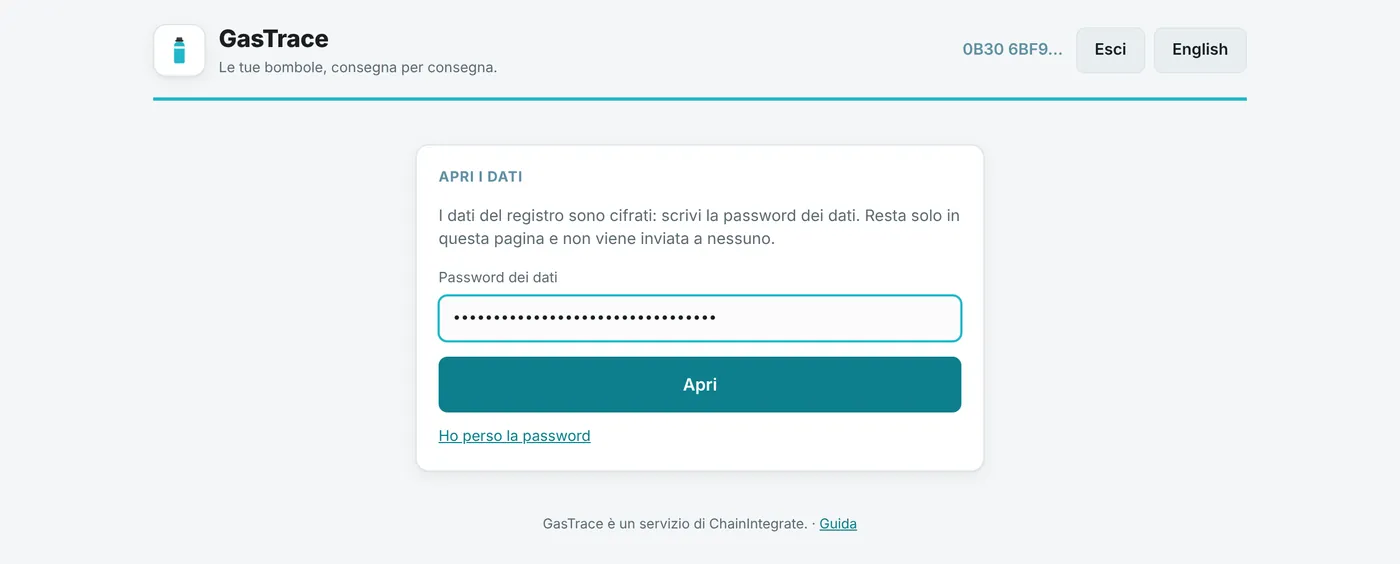
- The following times type the data password and press Open. It takes a few seconds.
If the page cannot find the extension, install it from account.chainintegrate.it, or open the page in the browser where it is installed.
Each change (a customer, a phone, the settings) is confirmed in the extension's window. Pressing Cancel there changes nothing.
Data password and recovery code
- The data password opens the cylinders' data. It stays in the page, is never sent anywhere, and is forgotten when the page closes. After 30 minutes unused the page locks itself and asks for it again.
- The recovery code is 24 words, shown once, at the first sign-in. Keep it printed in a safe place, away from the computer. Do not photograph it, e-mail it or give it to anyone: ChainIntegrate will never ask for it.
- Lost the password: on the password screen press I lost the password, type the 24 words and choose a new password.
- To change it: Settings → Change password. Phones already set up keep working.
Without the password and the recovery code nobody, ChainIntegrate included, can read the data any more.
A good password is a sentence of at least 20 characters, or at least 14 characters mixing lower case, upper case, digits and symbols.
Settings (do these first)
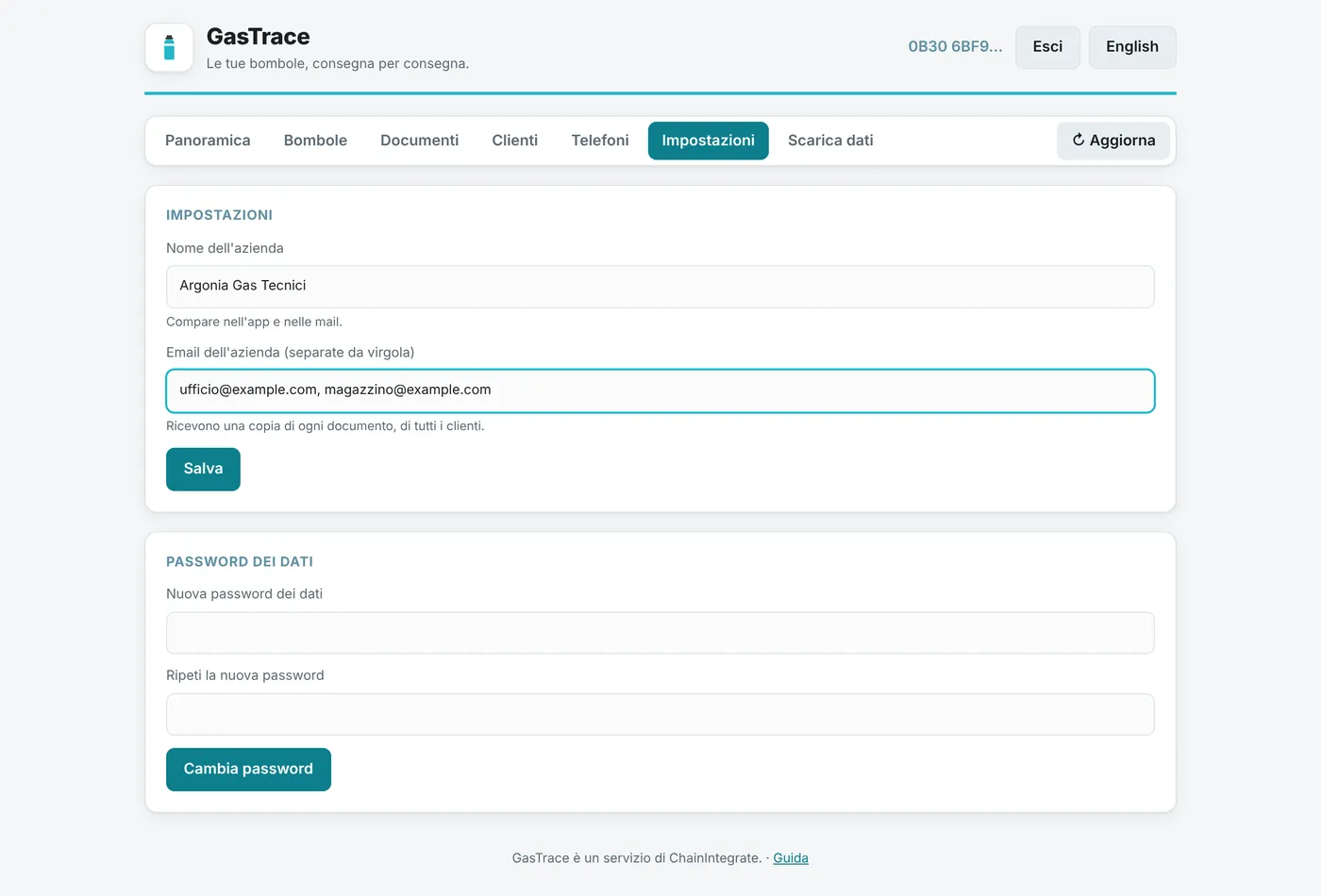
- Company name: shown in the app and in the e-mails' subject. Until it is set, the app warns the driver.
- Your company's e-mails: the company's mailboxes (office, warehouse…) that receive a copy of every document, for all customers. Separate them with commas.
Customers and refill plants
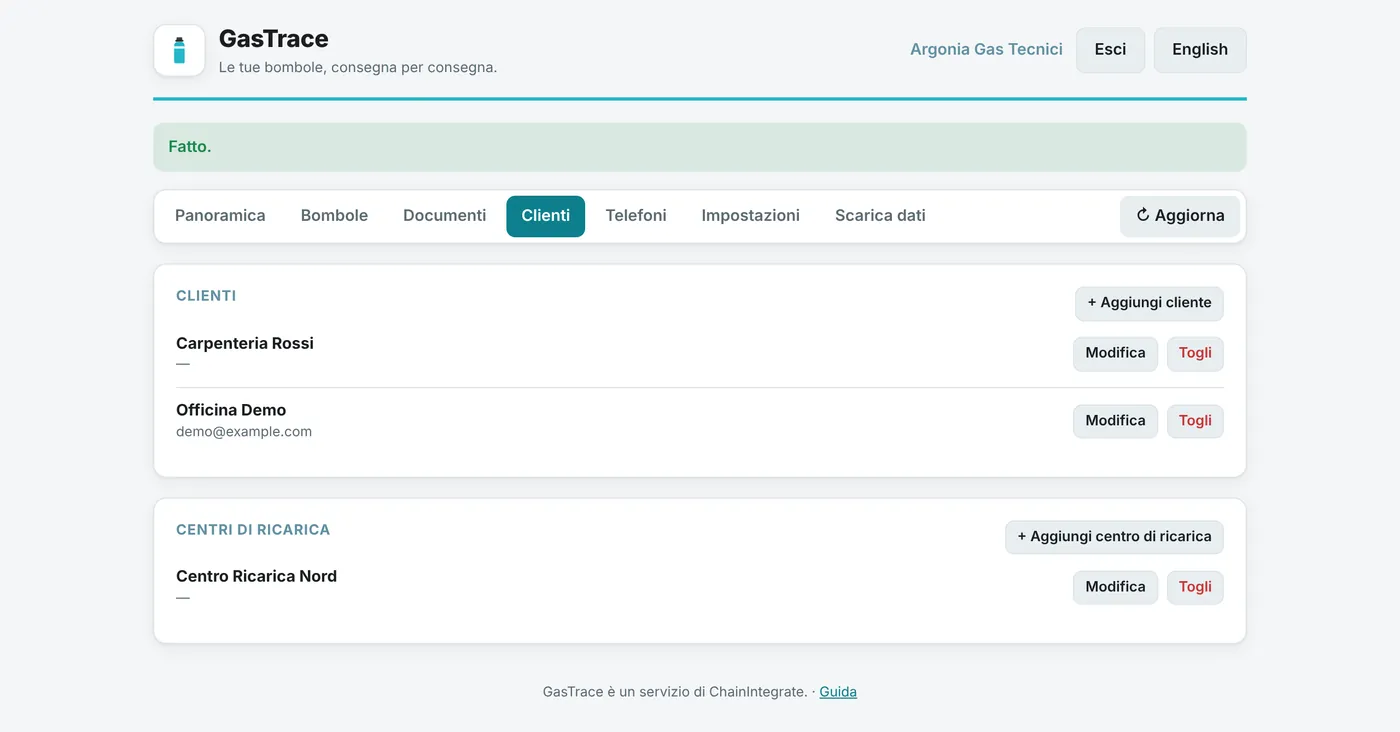
- Customers → Add customer: name and e-mails. The customer's e-mails receive each document about them.
- Add refill plant: where the cylinders go to be refilled.
- Edit changes the name or e-mails; Remove archives it: the app no longer offers it, and its documents keep its name.
The driver sees the updated list the next time the app is opened.
Drivers' phones
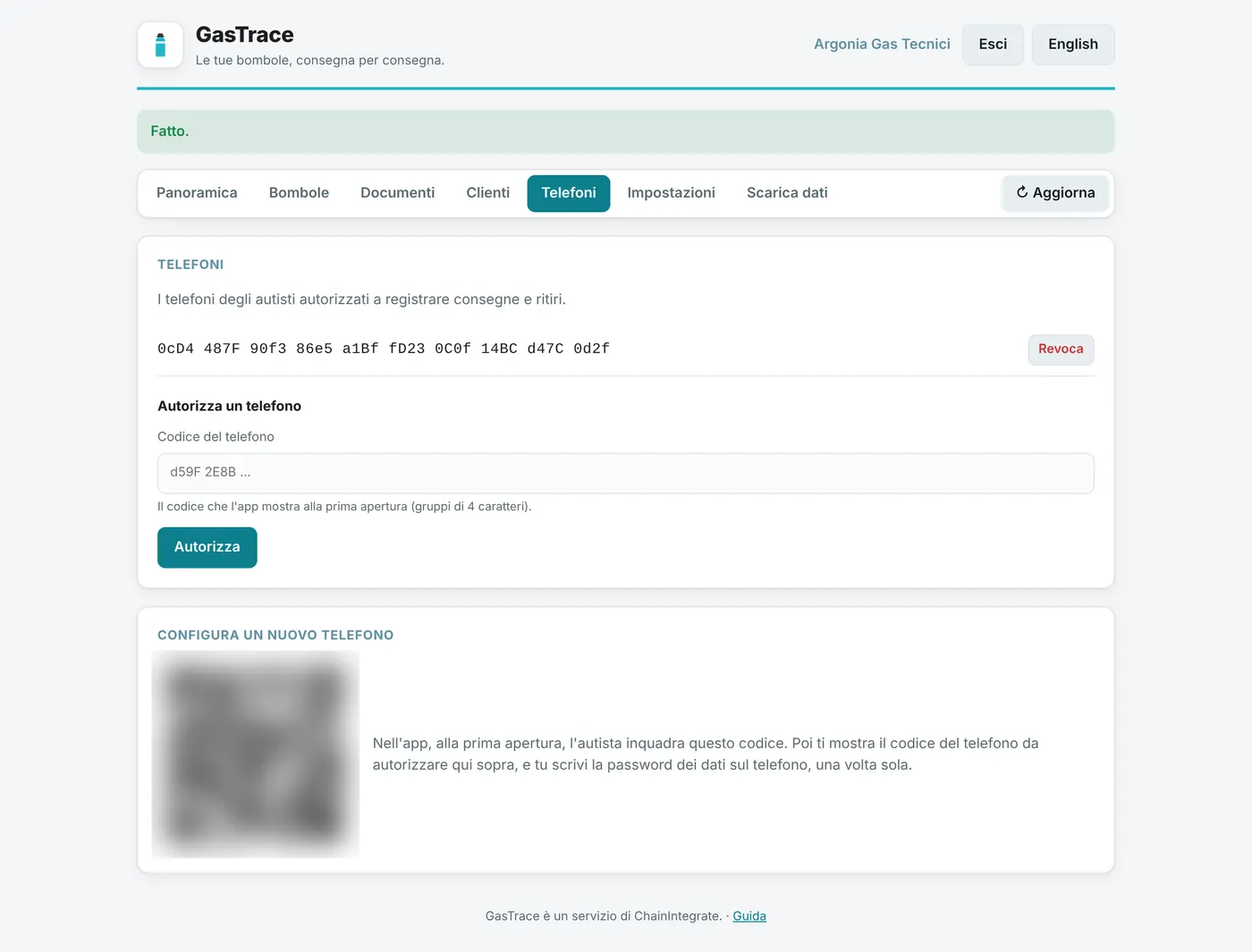
Each phone is authorized once, with the driver next to you. The Phones section shows the setup QR code.
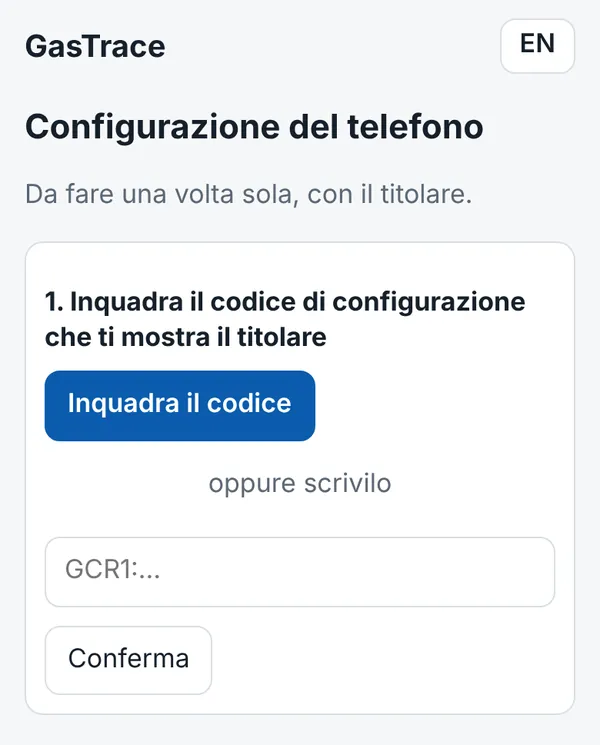
- The driver installs the app (see below) and opens it: scans the QR on the computer's screen.
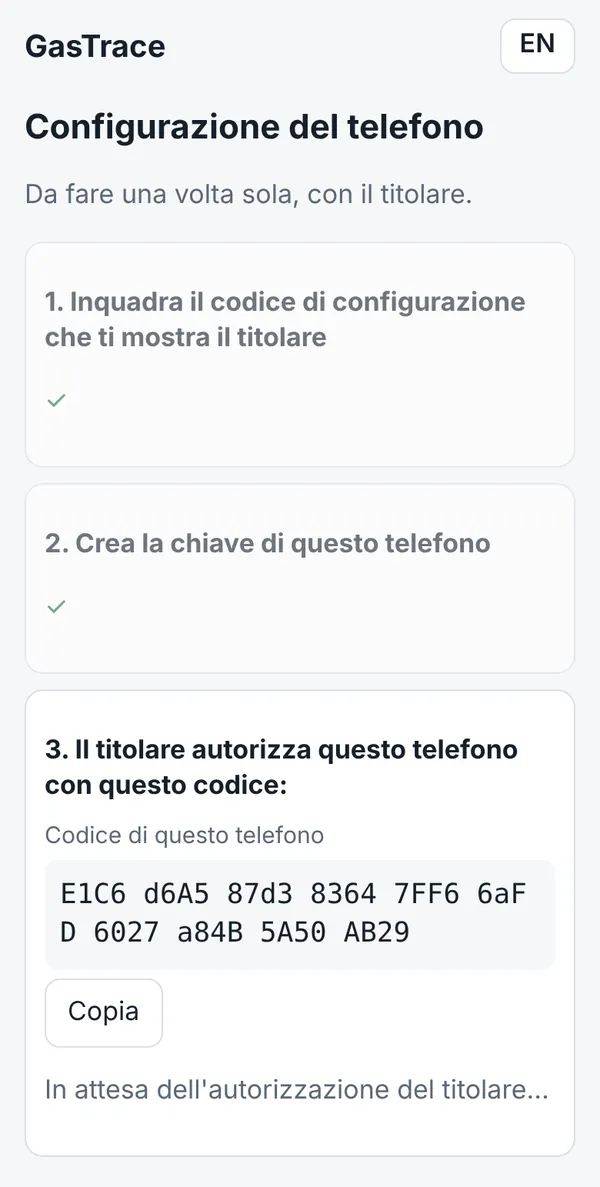
- The app has the driver create the phone's key with fingerprint or PIN, then shows the phone's code (groups of 4 characters).
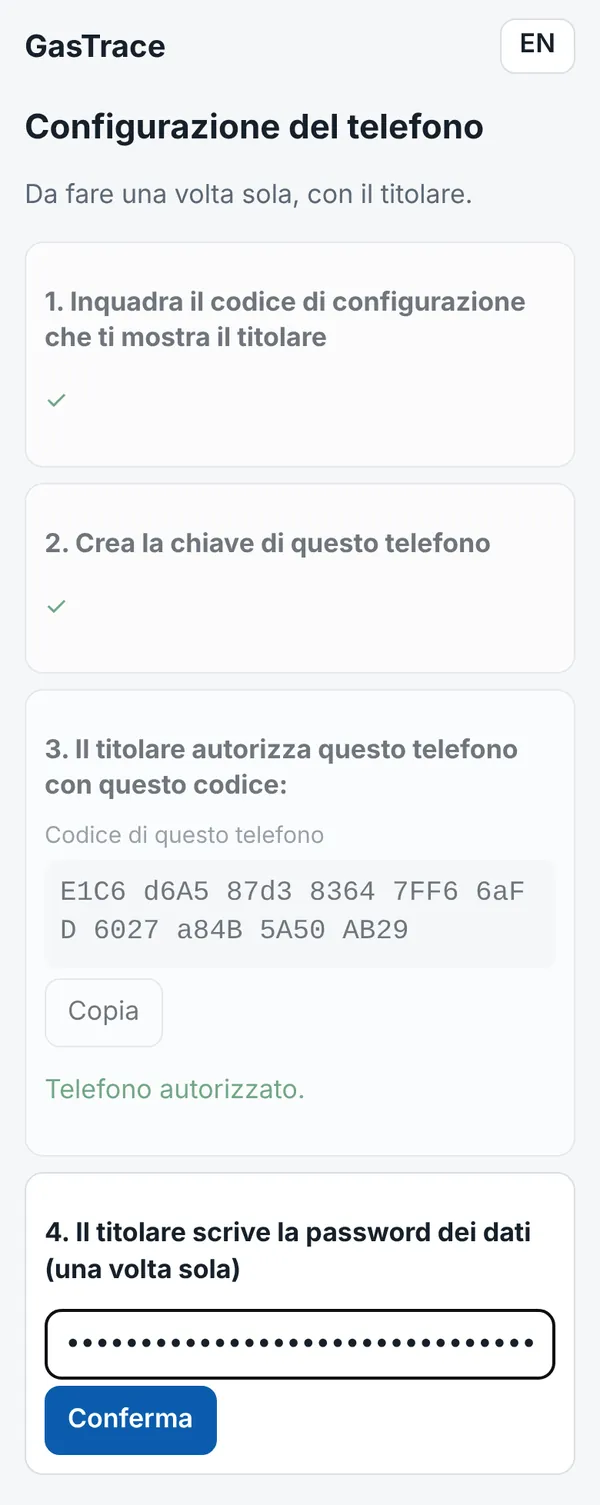
- You type that code in Authorize a phone, press Authorize and confirm in the extension.
- The app notices by itself and asks for the data password: you type it on the phone, once. The phone does not keep it.
Revoke a phone that is lost, stolen, or belongs to a driver who no longer works with you: from then on it cannot record anything. At its first unlock after the revocation, with network, the app erases by itself the key and the data kept on the phone. A lost or stolen phone, though, may never be unlocked again: that is why company phones are better, wiped when they are returned.
Cylinders and documents
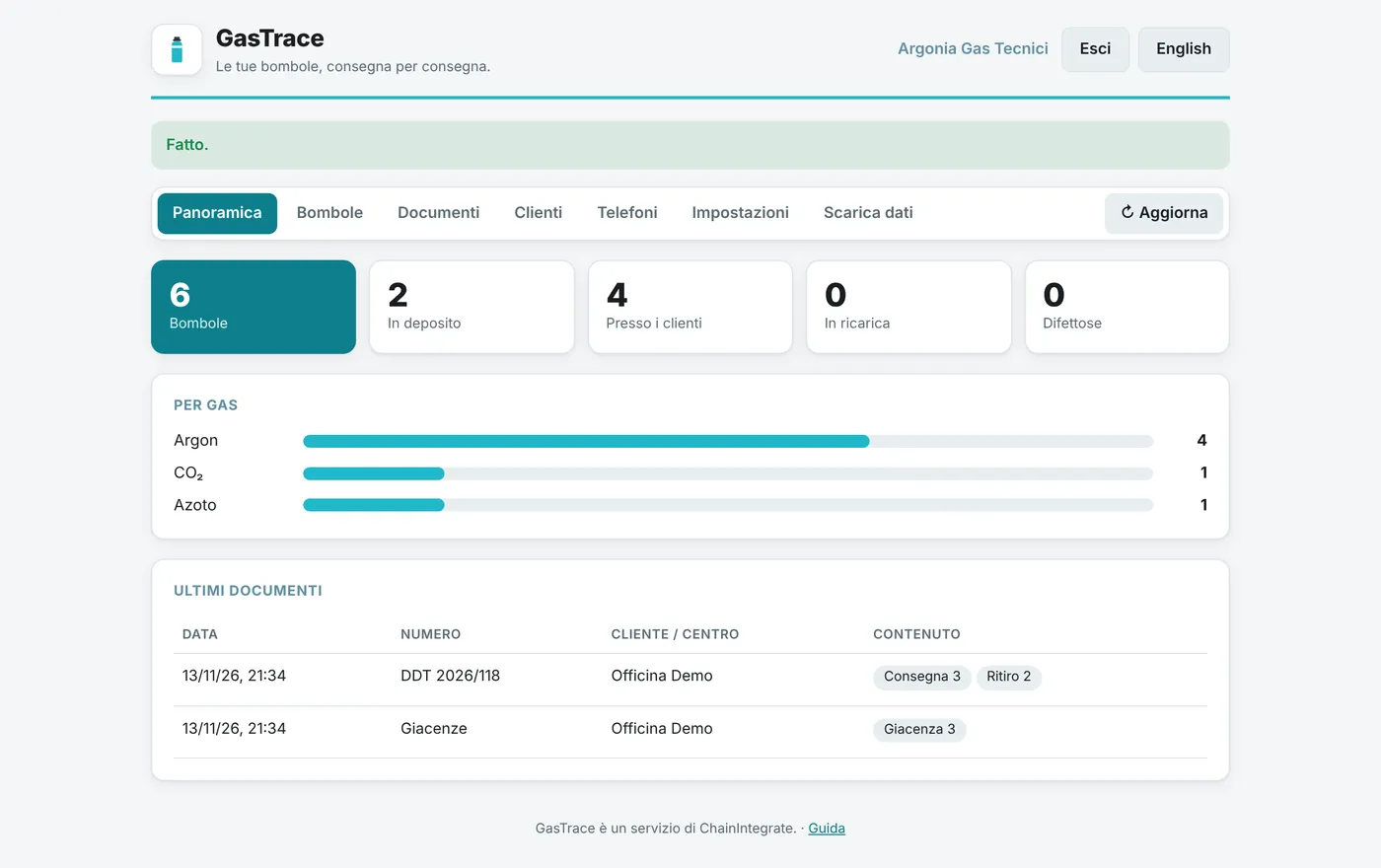
- Overview: how many cylinders at the depot, at customers, being refilled, defective; by gas; the latest documents.
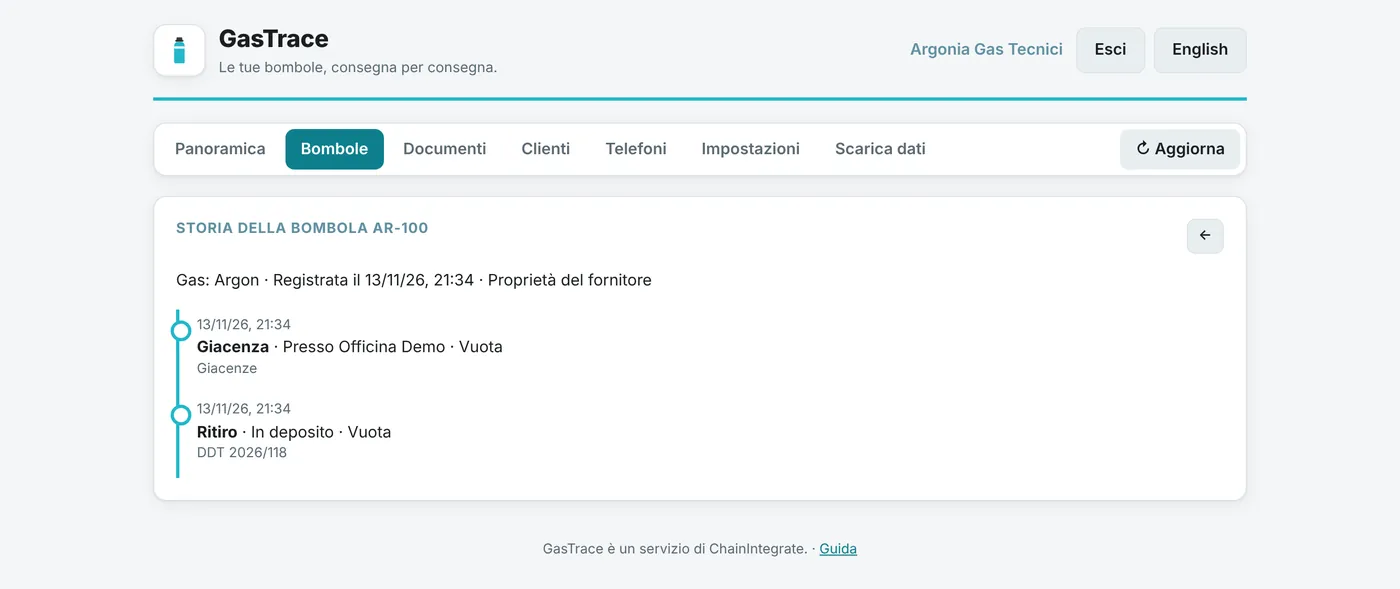
- Cylinders: search by code, gas or customer. Click a cylinder to see its whole history, movement by movement.
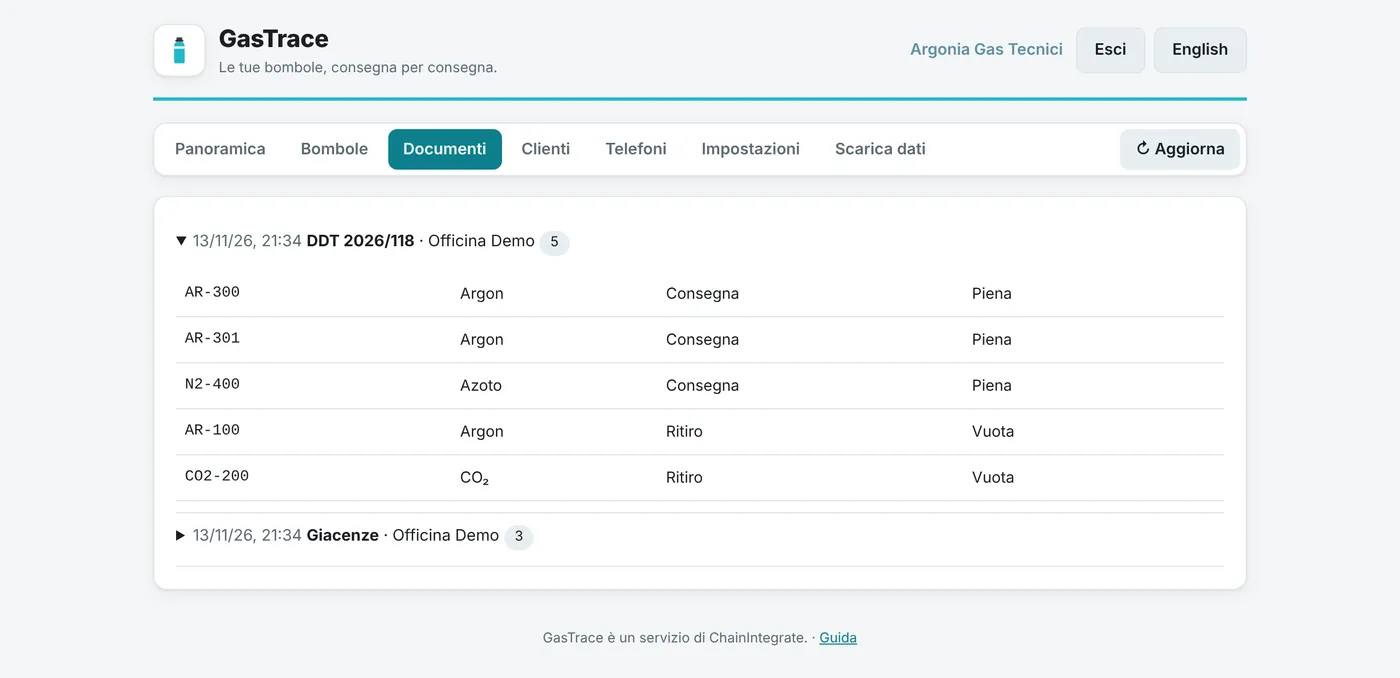
- Documents: delivery notes, stock counts and refill notes, with their cylinders and the warnings the driver confirmed.
Refresh reloads the data after a new document.
Downloading the data
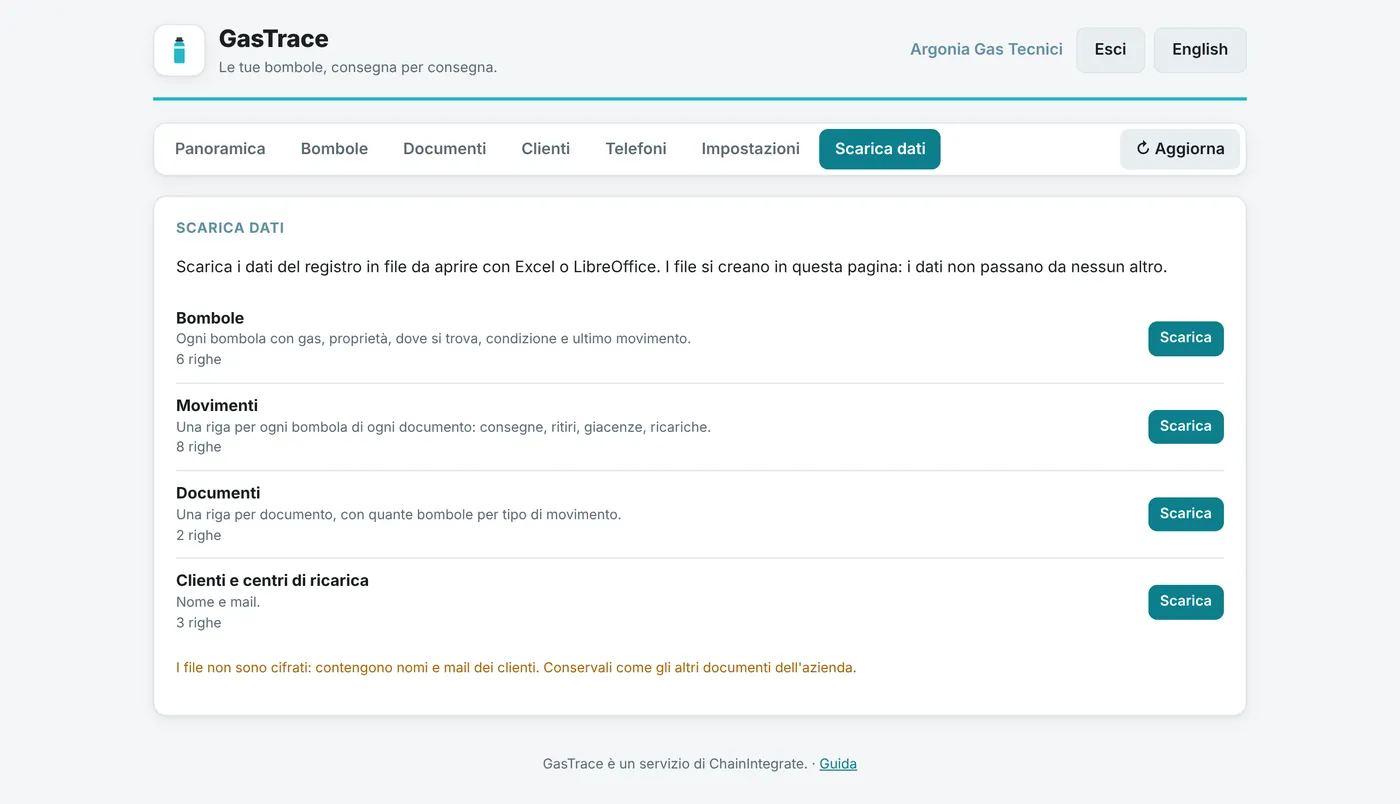
In Download data you can save the register's data on the computer, as files to open with Excel or LibreOffice (double-click the file):
- Cylinders: each cylinder with its gas, litres, owner, where it is, condition and last movement;
- Movements: one row for each cylinder of each document, oldest first;
- Documents: one row per document, with how many cylinders were delivered, collected, counted or refilled;
- Customers and refill plants: names and e-mails.
The files are made in the page itself: the data goes through no server. The file name carries the date, so you can keep a copy each month.
The downloaded files are not encrypted: they hold the customers' names and e-mails. Keep them as the company's other documents.
For the driver
Installing the app
The GasTrace app is for Android phones. It is not on the Play Store: it is downloaded from GitHub.
- On the phone open the latest version of GasTrace and tap the
gastrace-v….apkfile to download it. - Open the downloaded file. The first time Android says it cannot install apps from this source: tap Settings, turn on Allow from this source, go back and the installation goes on.
- Play Protect may offer to scan the app because it does not come from the Play Store: accept the scan, or tap More details → Install anyway. It is Google\'s check of apps that do not go through its store. Install only the file downloaded from this guide\'s link; for any other warning, or a file that came from elsewhere (e-mail, chat), stop and ask ChainIntegrate.
The phone needs a screen lock (fingerprint, PIN or pattern): without it the app cannot protect its key.
Never uninstall the app or clear its data: the phone's key would be lost and the phone would have to be set up again with the owner.
Setting up the phone (once, with the owner)
- Open GasTrace and tap Scan the code: scan the QR the owner shows on the page.
- Tap Create the key and confirm with fingerprint or PIN.
- The app shows this phone's code: give it to the owner (you can use Copy).
- Once the owner has authorized it, the app asks for the data password: the owner types it.
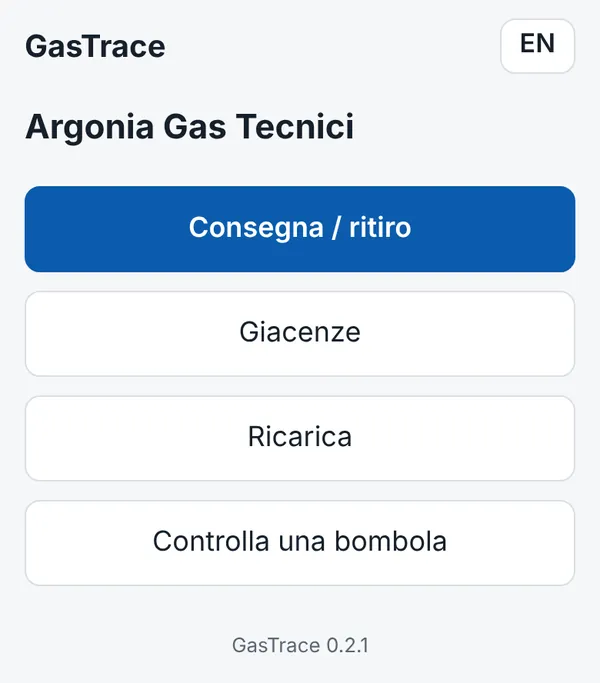
From then on open the app with Unlock with fingerprint or PIN. After 10 minutes unused, or in the background, the app locks itself: it opens again with fingerprint or PIN, and a document left half-made comes back. What the phone keeps (customers, documents to send) is encrypted: without fingerprint or PIN it cannot be read.
Delivery and collection
- Tap Delivery / collection and choose the customer.
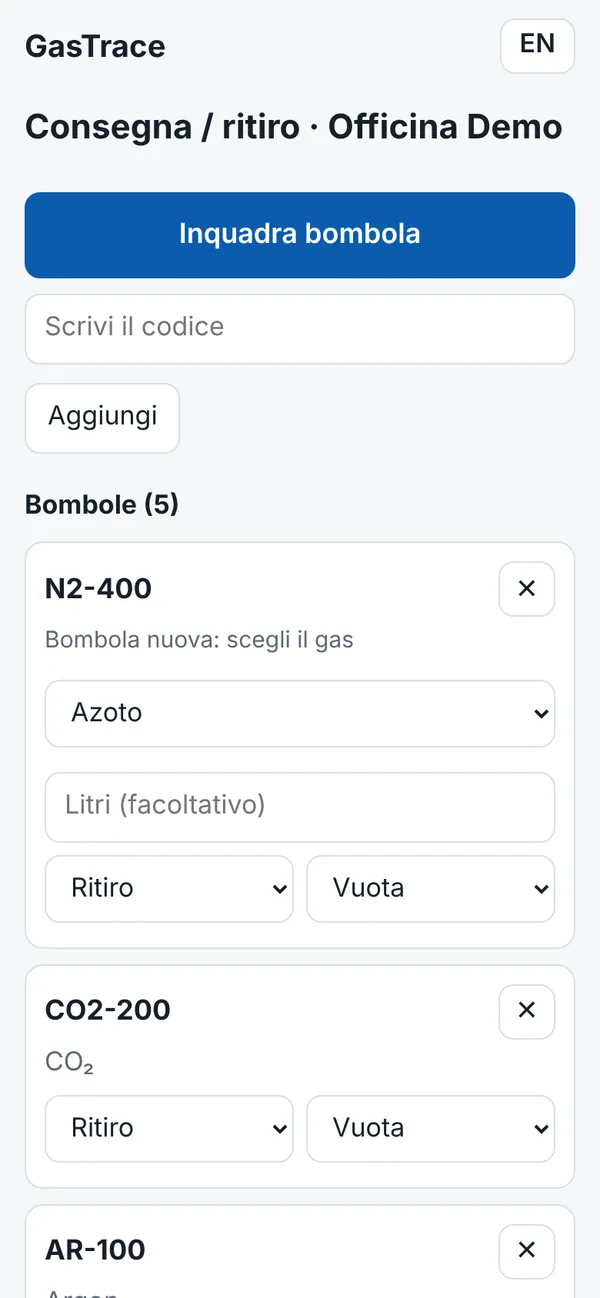
- Tap Scan cylinder for each cylinder, those you leave and those you take back. If the code cannot be read, use Type the code.
- The app proposes the movement by itself:
- a cylinder at the depot, or never seen before, is a delivery (full);
- a cylinder that was already at this customer is a collection (empty; full or defective can be chosen).
- For a new cylinder choose the gas (and the litres if you like).
- If a warning appears (for example "Recorded at another customer"), check it and tap I confirm the warnings: they are listed in the e-mail too.
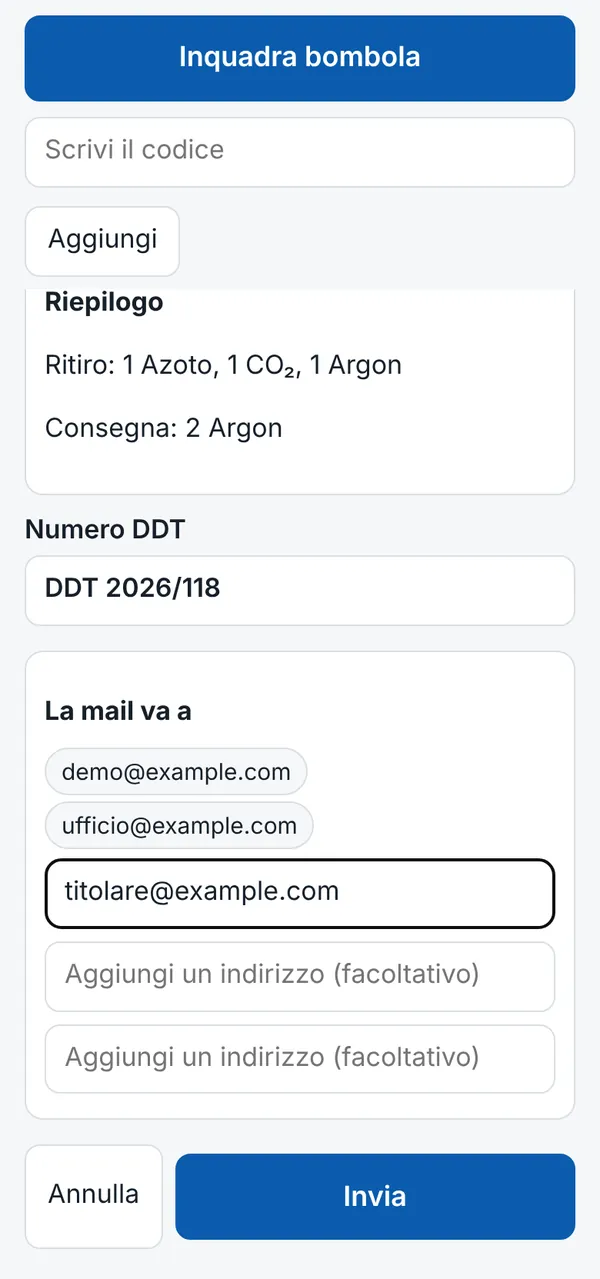
- Type the delivery note number, check the summary and who gets the e-mail (you can add an address), then Send and confirm with fingerprint or PIN.
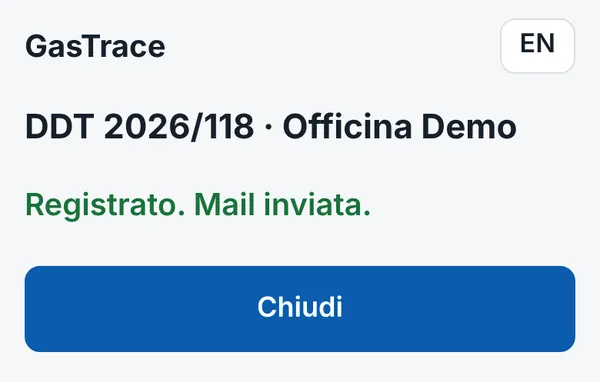
"Recorded" means the document is saved; then the app says whether the e-mail left.
Stock count
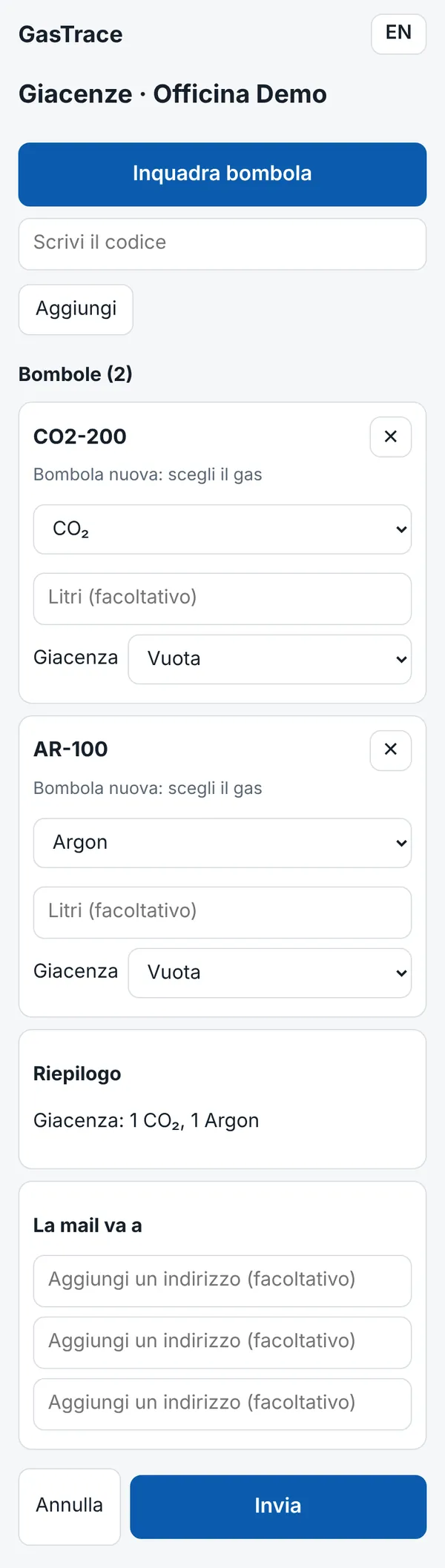
Used at the start, to record the cylinders already at customers or refill plants, and whenever a count is needed.
- Tap Stock count and choose the customer or plant.
- Scan all the cylinders there; for new ones choose the gas.
- Send. No document number is needed and no e-mail leaves, unless you add an address.
Refill
Tap Refill and choose the refill plant. Scan the cylinders: those at the depot are sent to refill, those that were at that plant are back from refill. Type the document number and send.
Checking a cylinder
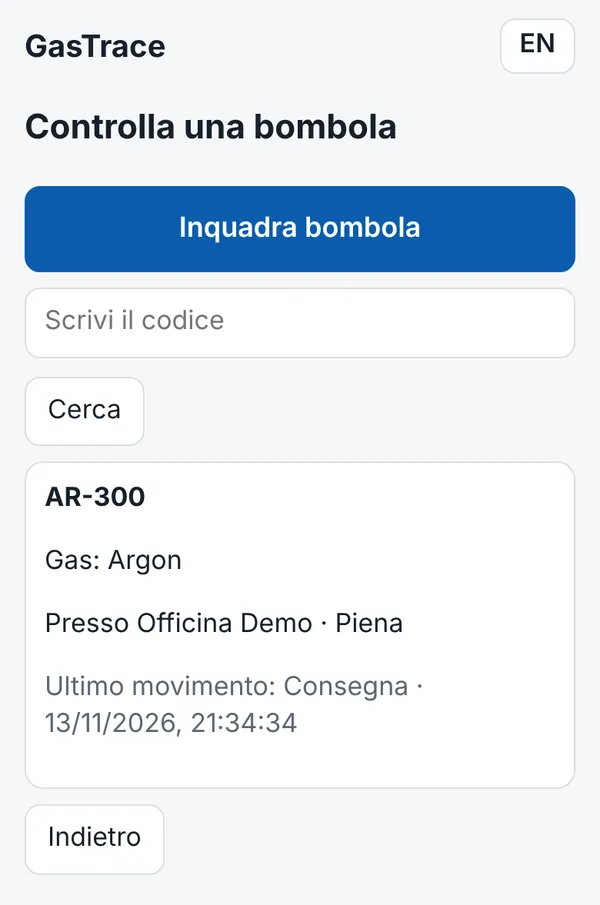
Check a cylinder: scan the code and see the gas, where it is, its condition and last movement. It records nothing.
No network: "To send"
Without signal, or when the service is busy, the document is saved on the phone and leaves by itself as soon as it can. The home screen shows To send (n): there you can see them, send them with Send now or discard them. Recorded documents whose e-mail did not leave stay there too, with Send from the phone; once you sent it, tap E-mail handled: remove.
A waiting document can be refused when it leaves: if meanwhile someone else recorded one of the same cylinders ("A cylinder changed in the meantime"), if more than seven days went by ("Document expired"), or if the phone was revoked. When no part was recorded, Make the document again appears: the app reopens it with the same customer, number and cylinders, read again with their current state. Check the lines and send.
A document too large (roughly more than 80 cylinders) does not leave: the app says so before signing. Split it into two documents.
The document's e-mail
After each delivery note or refill note an e-mail goes to the customer's e-mails, the company's e-mails and any address added in the document. If the app says the e-mail did not leave, or it does not know whether it left, tap Send from the phone: your e-mail app opens with the text ready.
Updating the app
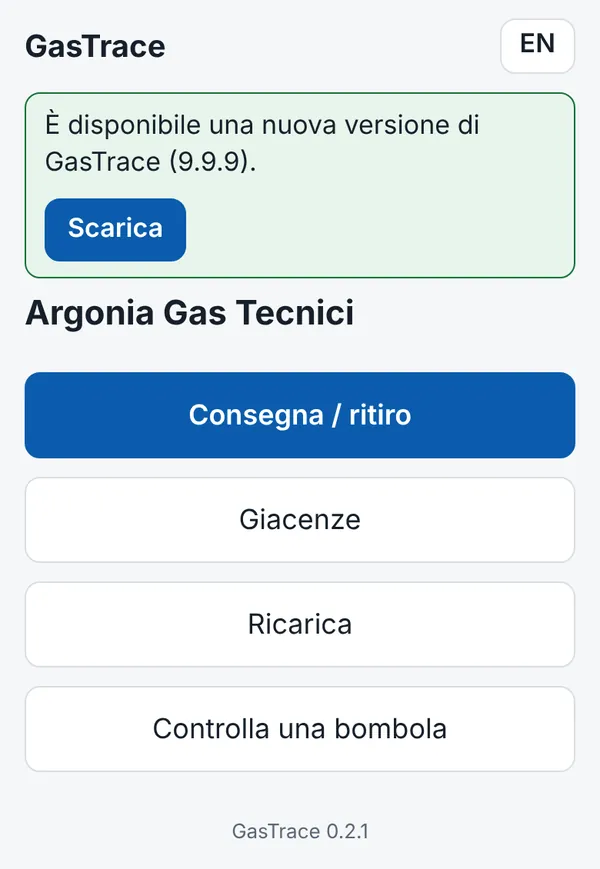
When a new version is out, the home screen shows "A new version of GasTrace is available". Tap Download, open the downloaded file and confirm: the new version installs over the old one and the phone stays set up. The installed version is written at the bottom of the home screen.
Common problems
"A cylinder changed in the meantime"
Someone recorded the same cylinder after you scanned it. Make the document again: the app proposes the updated movements.
"This document is already recorded"
The same document number was already sent. Look in "To send", or ask the owner to look in Documents.
"This phone is no longer authorized"
The owner revoked it: the app erased the phone's key and data. If that was a mistake, set it up again with the owner.
Phone lost, stolen or replaced
The owner revokes it at once in Phones. The new phone is set up from scratch, like the first time.
The fingerprint no longer works, or the screen lock was removed
Android deletes the app's key when the screen lock is removed. Set the screen lock again and set up the phone again with the owner; the owner revokes the old code.
The page cannot find the extension
Open the page in the browser where ChainIntegrate Account is installed, or install it from account.chainintegrate.it.
The app asks for fingerprint or PIN again
After 10 minutes unused, or in the background, the app locks to protect the data: unlock it with fingerprint or PIN. A document left half-made comes back.
"This operation is confirmed from an administrator computer of your account"
Changes to the register (customers, phones, settings, password) are confirmed only from an administrator computer of the company's account. From a computer authorized only for "access" you can see the data but not change it: use the administrator computer.
"Wrong password"
Check upper case and the keyboard. If it is lost, use I lost the password with the recovery code.
Anything else
Write to ChainIntegrate (info@chainintegrate.it) saying what you were doing and the message you saw.